
Meta Conversions API setup guide

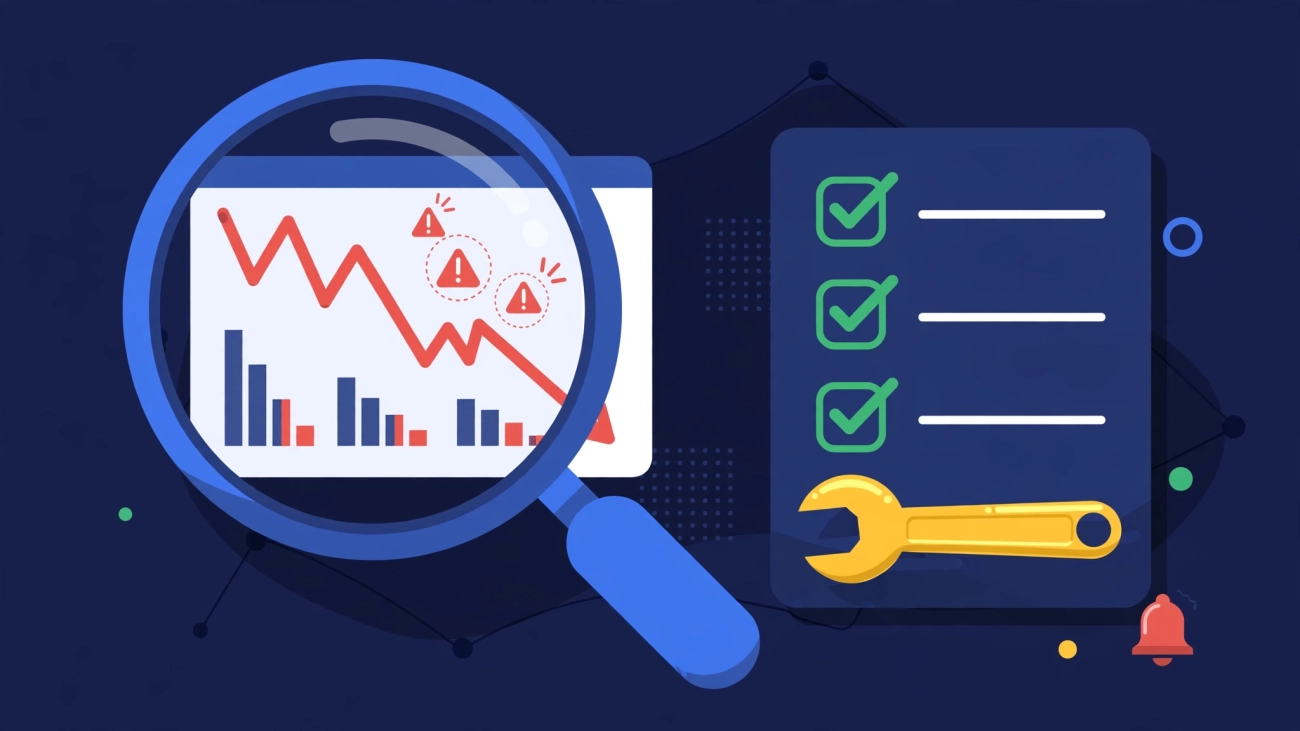
How to Check If Your Meta Ads Tracking Is Broken

Your Meta Ads ROAS looks wrong. Maybe it is suspiciously low. Maybe it is suspiciously high. Either way, before you blame the creative, the audience, or the algorithm, check the tracking.

Broken tracking is the most common reason I see advertisers make bad decisions. They kill winning ads because conversions were not recorded. They scale losing ads because conversions were double counted. The ads were fine — the data was lying.

Here are seven checks you can run yourself, in order. They take under an hour, and they will tell you whether your tracking is healthy or whether it needs fixing.

Check 1: Events Manager Overview and Diagnostics

Open Meta Events Manager and select your pixel / dataset. Start with the overview.

  • Are events arriving at all? A flat line on a day with real sales is the most basic failure.
  • Open the Diagnostics tab. Meta flags real problems here: missing parameters, low match quality, events that stopped arriving.
  • Look at Event Match Quality. This score tells you how reliably Meta can tie your events to the people who saw your ads. Low match quality means your campaigns are optimizing on weak signals — a common cause of erratic performance.

If Diagnostics shows warnings, do not ignore them. They are Meta telling you exactly what is wrong.

Check 2: Test Events — Fire a Real Purchase

The Test Events tool shows you events as they arrive, in real time. Use it.

  1. Open Test Events in Events Manager.
  2. Go to your store in a separate tab and complete a test purchase (or submit a test lead, depending on your funnel).
  3. Watch the events arrive in Test Events.

You should see the full sequence: page view, add to cart, checkout, purchase — each once, with the right value and currency. If a step is missing, that event is not firing. If a step appears twice, you have a duplication problem (see Check 4).

This is the single most useful check on this list. Do it before you change anything else.

Check 3: Browser vs. Server — Is the Conversions API Running?

If you have server-side tracking set up (and you should — see our server-side tracking setup guide), verify both sources are sending.

In Events Manager, look at the event source breakdown for your Purchase event. You should see events arriving from both the browser pixel and the server (Conversions API). If you only see browser events, your server setup is not sending — or is not connected to the right dataset.

Also check the ratio. If server events are a tiny fraction of the total, the server connection is partially broken — often a misconfigured tag, a missing event, or a server container that stopped running.

Check 4: Deduplication — Are Purchases Counted Twice?

Deduplication is where most stores go wrong. When both the browser pixel and the Conversions API report the same purchase, Meta merges them into one conversion — but only if both events carry the same event ID.

How to check:

  • In Test Events, click into a single purchase. It should show one merged event with both a browser and a server source.
  • If you see two separate purchase events for one test order, deduplication is failing, and your ROAS is inflated.

The fix is technical but straightforward: make sure your pixel and your server send the same event_id for the same action. If you are using server-side GTM, this is a standard configuration — but it is also the step most setups get wrong.

Check 5: Domain Verification and Event Coverage

This one is easy to forget and painful to miss.

  • Is your domain verified in Business Settings? It is no longer required for event configuration, but it is still worth doing for link ownership and brand safety.
  • Do NOT look for the old Aggregated Event Measurement 8-event ranking — Meta removed manual AEM event configuration (the AEM tab was removed from Events Manager). Meta now aggregates eligible web events automatically, with no 8-event cap and nothing to prioritize manually.
  • Instead of ranking events, make sure your Pixel + Conversions API send a clean, deduped event set: Purchase, AddToCart, InitiateCheckout and your other key events arriving with matching event IDs and good Event Match Quality. If the event set is clean, AEM handles the rest.

Check 6: Cross-Check Against Real Orders

This is the check that settles arguments. Compare three numbers for the same date range:

  1. Actual orders in your store (Shopify, WooCommerce, or your CRM) — the truth.
  2. Purchases reported in Meta Ads Manager — what Meta thinks happened.
  3. Purchases in GA4 — a second opinion. Run through our GA4 conversion tracking audit checklist if your GA4 numbers look off too.

A small gap is normal. Platforms attribute differently, and some conversions arrive late. But a persistent, large gap in either direction is a tracking problem:

  • Meta reports far fewer purchases than your store → events are being lost (ad blockers, consent, broken tags, missing server events).
  • Meta reports far more purchases than your store → deduplication is failing, or events are firing on page reloads and thank-you-page revisits.

Run this comparison over at least 7 days. One day of noise means nothing; a week of the same gap means something is broken.

Check 7: Attribution Window and Delayed Conversions

Before you conclude tracking is broken, rule out two normal causes of mismatch.

  • Attribution window. Meta’s default window may differ from what you expect. A purchase 6 days after a click may be counted — or not — depending on your settings. Make sure you know which window you are looking at.
  • Delayed conversions. Some purchases take days to appear. If you compare today’s Ads Manager numbers to today’s store orders, you are comparing two different things. Always compare settled periods — at least 3 days old — before judging.

What “Healthy” Tracking Looks Like

After running all seven checks, healthy tracking has these traits:

  • Events arrive consistently, with no gaps on sales days
  • Diagnostics shows no unresolved warnings
  • Test Events shows each funnel step once, with correct values
  • Deduplication merges browser and server events cleanly
  • The gap between Meta-reported purchases and real orders is small and stable
  • Your key funnel events are configured and firing consistently — with no legacy 8-event prioritization to maintain

If all of that is true, your tracking is not the problem — look at the ads, the offer, and the landing page. If any of it fails, fix tracking before you touch anything else. Optimizing on broken data is worse than not optimizing at all.

Quick Fix List

SymptomMost likely cause
No events at allPixel not installed, or wrong pixel ID
Missing purchasesAd blockers + no server events, or broken purchase tag
Double-counted purchasesDeduplication failing — mismatched event IDs
Low match qualityMissing customer data in events (email/phone hashing)
Tiny remarketing audiencesEvents lost upstream — check pixel + server coverage

FAQ

How often should I check my tracking?

Run the full seven checks after any site change, platform change, or new campaign launch — and once a month as routine. Tracking breaks silently. Nobody gets an alert when a tag stops firing.

Do I need a developer for this?

For the checks, no — everything above uses Meta’s own tools. For fixes, it depends. Deduplication and server-side setup are technical, but they are standard work for anyone who does tracking professionally.

Is the Meta Pixel alone enough?

No — not anymore. The pixel catches browser-side events, but ad blockers, privacy settings, and closed tabs eat a growing share of them. The pixel plus the Conversions API, deduplicated properly, is the baseline in 2026.

My ROAS dropped suddenly. Is it tracking or the ads?

Run Check 6 first. If Meta-reported purchases fell but real orders did not, it is tracking. If both fell together, it is the ads, the offer, or the market. Never change creative until you know which one it is.

Get Your Tracking Checked

If these checks turned up gaps — missing purchases, duplicates, low match quality — that is exactly what a tracking audit is for. Book your free strategy audit and I will run the full diagnosis on your account and show you what to fix first. See our server-side tracking service, or book below. WhatsApp is also available via the site if you prefer to start there.

Further reading: Meta’s Pixel documentation.

Server-side tracking setup guide

Server-Side Tracking: Why Your Meta and Google Ads Are Misreporting Conversions

Your Ads Manager says 40 purchases. Your store says 58. Or the reverse — Ads Manager claims 70, and your store only recorded 52.

If you have seen this gap, you are not imagining it, and you are not alone. Almost every advertiser I audit has it. The cause is simple: the tracking most stores rely on — browser-based pixels and tags — is broken in ways that have only gotten worse over the last few years.

Server-side tracking is the fix. Not because it is trendy, but because it solves the specific technical reasons your numbers are wrong. Here is what is actually happening, how server-side tracking works, and what to set up.

Why Browser Tracking Breaks

Browser tracking means a tag fires in the visitor’s browser and sends an event to Meta or Google. That chain has several weak links.

Privacy restrictions. Apple’s App Tracking Transparency prompt and browser-level tracking prevention limit what third-party tags can see and how long their cookies last. A visitor who declines tracking, or whose browser expires the cookie, becomes partially invisible.

Ad blockers and extensions. A large share of users run ad blockers or privacy extensions that block pixels outright. Those conversions still happened — your store recorded them — but the ad platforms never see them.

Slow pages and lost events. If a buyer lands on your thank-you page and closes the tab before the pixel fires, that conversion is gone. Slow pages make this worse.

Consent banners. In regions where consent is required, visitors who decline cookies do not get tracked by browser tags at all. Your ads still drove those sales; your reporting just cannot see them.

Duplicate and missing events. When both a browser pixel and a partial server event fire for the same purchase, platforms can double count. When neither fires cleanly, the purchase vanishes from reporting.

The result: Meta and Google optimize against incomplete data. They under-credit winning ads, over-credit losing ones, and you make budget decisions on a distorted picture.

How Server-Side Tracking Works

Server-side tracking moves the event-sending job from the visitor’s browser to your own server.

The flow looks like this:

  1. A visitor completes a purchase on your store.
  2. Your server — not the browser — sends the conversion event directly to Meta (via the Conversions API, or CAPI) and to Google (via Enhanced Conversions and server-side Google Tag Manager).
  3. The event carries a stable identifier (hashed email or phone, order ID) so the platform can match it to the right ad click.
  4. The platform deduplicates: if both the browser pixel and the server event report the same purchase, they are merged into one conversion using a shared event ID.

Because the event comes from your server, ad blockers cannot intercept it, a closed tab cannot lose it, and browser cookie restrictions matter far less. The data the platforms receive is more complete and more consistent.

Two things server-side tracking is not:

  • It is not a way to track people who did not consent. Consent Mode v2 still applies — if a visitor declines, you must respect that, and the platforms model those conversions rather than recording them individually.
  • It is not a magic ROAS button. It improves the data. Better data leads to better optimization, but the ads and the offer still have to do their job.

Signs Your Conversions Are Misreported

Check your own account against this list. If two or more are true, your tracking needs attention.

  • Ads Manager and your store disagree. A persistent gap between platform-reported purchases and actual orders is the clearest symptom.
  • Event match quality is low. In Meta Events Manager, low match quality means the platform cannot reliably tie events to people who saw your ads.
  • Duplicate conversions. The same purchase appears twice, inflating ROAS and confusing optimization.
  • Missing funnel steps. Add-to-carts and checkouts appear in your store analytics but barely register in the ad platform.
  • Remarketing audiences are too small. If your website visitor audiences are far smaller than your actual traffic, events are being lost upstream.
  • Performance swings after iOS updates. Accounts that were stable before privacy changes and erratic after are usually suffering from data loss, not from a sudden creative failure.

What Server-Side Fixes — and What It Doesn’t

It fixes: lost events from ad blockers, closed tabs, and slow pages. It fixes deduplication when set up with matching event IDs. It improves event match quality because server events carry better identifiers than browser cookies.

It improves: audience sizes for remarketing, the reliability of your ROAS and CPA figures, and the quality of the signals your campaigns optimize on.

It does not fix: a bad offer, a slow site, or a broken checkout. It does not replace consent compliance. And it does not fix a campaign whose targeting or creative is the real problem — it only makes sure you are judging that campaign on accurate data.

Implementation Steps

Setting up server-side tracking properly takes care. This is the sequence I follow:

  1. Audit first. Map every conversion event you currently track — purchases, leads, add-to-carts — and where each one fires. Document the gaps before changing anything.
  2. Set up a server-side GTM container. This is the hub. It receives events from your site and forwards them to each platform. Host it on your own subdomain so it is first-party. Our server-side tracking setup guide walks through the full setup.
  3. Connect Meta Conversions API. Send purchase, lead, and key funnel events server-side, with hashed customer data for matching. Use the same event IDs as your browser pixel so deduplication works. See our Meta Conversions API setup guide for the step-by-step.
  4. Connect Google Enhanced Conversions. Send hashed first-party data with your Google Ads conversions so more of them are attributed correctly.
  5. Configure Consent Mode v2. Make sure your consent banner controls what the server container sends. This is not optional — it is a compliance requirement.
  6. Test before you trust. Use Meta’s Test Events tool and Google’s Tag Assistant to confirm events arrive once, with the right parameters, and no duplicates.
  7. Monitor for two weeks. Compare platform-reported conversions against actual orders daily. The gap should shrink. If it grows, something is misconfigured — usually deduplication or consent settings.

Common mistakes: sending events from both browser and server without matching event IDs (double counting), skipping Consent Mode, and treating setup as a one-time job instead of something you verify after every site change.

FAQ

Does server-side tracking replace the Meta Pixel?

No. You run both. The pixel catches browser-side events, the server sends server-side events, and deduplication merges them. Removing the pixel entirely loses the browser signal that still works for a large share of visitors.

Is server-side tracking legal under GDPR and privacy laws?

The technology itself is neutral — compliance depends on how you use it. You must still obtain consent where required, honour opt-outs, and follow each platform’s rules. Consent Mode v2 exists for exactly this reason. Server-side tracking is not a way around privacy law.

How long does setup take?

It depends on your stack. A standard Shopify or WooCommerce store with a clean setup is a focused project, not a months-long rebuild. The variable is usually how messy the existing tracking is — untangling years of duplicate tags takes longer than the server setup itself.

Will it improve my ROAS?

It improves the accuracy of your ROAS. Often that means reported ROAS goes up, because previously invisible conversions now appear. But the real gain is decision quality: you stop killing good ads and scaling bad ones based on wrong numbers.

Get Your Tracking Fixed

If your platform numbers and your store numbers do not agree, that gap is costing you money every day — in bad budget decisions and wasted spend. See our server-side tracking service, or book your free strategy audit and I will show you exactly where your tracking is leaking. WhatsApp is also available via the site if you prefer to start there.

Further reading: Google’s server-side tagging overview.

Performance Max optimization across Google channels

Performance Max Optimization: 9 Fixes That Actually Move the Needle in 2026

Performance Max runs across almost Google’s entire inventory — Search, YouTube, Display, Discover, Gmail, and Maps — from a single campaign. When it works, it’s the most efficient prospecting engine in the account. When it doesn’t, it feels like a black box with your credit card attached.

Here’s the good news: PMax is much less of a black box than it used to be. The 2025 update cycle gave advertisers real controls: campaign-level negative keywords (limit raised to 10,000), search themes (now 50 per asset group), full search term reporting, and channel-level performance reports that finally show where your budget actually went.

Most underperforming PMax campaigns aren’t victims of bad AI. They’re victims of sloppy inputs. These are the 9 fixes I apply in every PMax audit, in the order I’d apply them.

1. Fix your conversion goals before touching anything

Performance Max optimizes aggressively toward the primary conversion goals you select. If “page views” or a soft micro-conversion sits next to “purchase” as a primary goal, the AI will happily chase the cheap, easy conversions and call it a win. Garbage in, garbage out — at machine speed.

Audit your goals first:

  • E-commerce: your primary conversion should be the purchase event — accurately tracked, deduplicated between browser and server events, with correct revenue values. If your tracking is off, everything downstream is off. Run through our server-side tracking setup guide before scaling PMax spend.
  • Lead gen: don’t let PMax optimize on raw form fills if lead quality varies. Set up Enhanced Conversions for leads and import offline conversions from your CRM, so Google learns which queries, geos, and audiences produce leads that actually close — not just leads that fill out forms.

Secondary conversions are for observation. Primary conversions are the steering wheel. Get this wrong and nothing else in this list matters.

2. Stop brand traffic from inflating your ROAS

This is the number one PMax illusion I see in audits. PMax loves brand terms: cheap clicks, sky-high conversion rates, and a ROAS number that makes the campaign look like a hero. That brand ROAS gets blended into the campaign average, quietly hiding the fact that prospecting — the thing you’re actually paying for — is failing.

The fix is campaign-level brand exclusions (Settings → Content → Brand exclusions). Google’s own guidance calls these the most precise tool for brand-term control — more complete than negative keywords — because they block your brand and its common variations across both Search and Shopping in one move. Retail advertisers get a granular toggle most people miss: you can exclude brand terms from Search text ads while letting Shopping keep serving on them.

Keep a separate branded Search campaign running to capture that demand with full query visibility and bid control. Roles stay clean: brand Search captures existing demand, PMax hunts new demand.

3. Steer the AI with search themes

Search themes are the closest thing PMax has to keywords — but they’re not keywords. Google’s own wording: themes “provide a broader signal,” ads still serve based on several factors, and the algorithm serving beyond your themes is by design. Treat them as steering signals, not targeting.

Practical rules:

  • 3–7 themes per asset group is plenty. Use broad, intent-level terms (“running shoes”), not hyper-specific ones (“red running shoes size 10”) — the AI handles the long tail itself.
  • The limit was doubled to 50 per asset group in 2025, but more themes is not better. Keep them focused.
  • Don’t duplicate what your product feed and website already teach the algorithm. Add event-specific themes (seasonal, promotional) to speed up ramp when timing matters.
  • Check the Source and usefulness columns in the search themes report — they show whether a theme actually drove incremental traffic or just sat there. A widely cited 2025 study found 71% of advertisers saw mixed or flat results from search themes, largely because they couldn’t see which themes worked. Now you can.

Pull theme ideas from your Search terms report, not from brainstorming.

4. Use negative keywords like a scalpel, not a machete

Campaign-level negative keywords finally arrived in PMax in January 2025, and the limit was raised from 100 to 10,000 during the year. But Google’s warning is worth reading twice: negatives in PMax are “a highly restrictive control that can harm performance by preventing the AI from finding valuable traffic.”

The practitioner’s rule:

  • Use negatives for brand-safety essentials and clearly irrelevant terms only — competitor conflicts, job seekers, free-seekers, products you don’t sell.
  • Prefer brand exclusions over negatives for your own brand. They’re more comprehensive.
  • Go easy on negatives in the first weeks after launch. Heavy negative lists during the learning window have been measured as a performance drag.
  • Account-level negative keyword lists (up to 1,000 keywords) also apply to PMax — audit them too, since an old shared list can silently throttle a new campaign.

Negatives are guardrails, not strategy.

5. Structure asset groups around real business themes

One asset group should connect one product or service theme, one audience signal, one landing page, one message, and one set of images and videos. A generic “all products / all services” asset group mixes signals and weakens both learning and creative relevance.

When to split PMax campaigns: when the business genuinely needs it — separate budgets, different tCPA/tROAS targets, meaningfully different margins, different geos or languages, new-customer acquisition vs. existing customers. When not to split: to get prettier reports. Fragmenting campaigns to see cleaner channel splits starves each campaign of conversion volume and makes everything worse.

Consolidation is a feature, not laziness. Every split should have a business reason attached to it.

6. Feed it real creative — especially video

If you don’t upload a video, Google auto-generates one from your other assets. Auto-generated video is better than nothing, but it’s a placeholder — a real 15-second video (horizontal, vertical, and square if you can) gives the algorithm something genuinely competitive on YouTube and Discover, which are often where PMax’s incremental reach comes from.

The full asset mix per asset group:

  • Images: landscape (1200×628 minimum), square (1200×1200), and portrait (960×1200)
  • Up to 5 short headlines (30 chars) + 5 long headlines (90 chars)
  • Up to 5 descriptions (90 chars)
  • Business name and logo
  • At least one real video asset

Then review asset performance monthly. Cut assets that sit at “Low” ratings for 30+ days, and build new variations around your winners. Creative testing inside PMax is slower than in Meta, but it’s still the highest-leverage activity most accounts aren’t doing.

7. Tame Final URL Expansion

Final URL Expansion is on by default. That means Google can replace your asset group’s final URL with a page it judges more relevant and generate matching assets on the fly. On a clean e-commerce catalog, that’s free extra reach. On a site with a blog, support center, careers pages, or policy pages, it’s ads sending paid traffic to pages that can’t convert.

Three tiers of control, in order of preference:

1. URL exclusions — block individual non-commercial pages.

2. Page feeds — curated include/exclude lists at the asset-group level via custom labels.

3. URL-contains rules — exclude whole sections like /blog or /careers. Google warns these can significantly limit the AI’s ability to find relevant traffic, so use this tier last.

After 4–6 weeks, check the landing page report: identify the highest and lowest-converting pages, exclude the losers, and consider building dedicated asset groups around your winners.

8. Read the channel report before you touch anything

Since 2025, PMax’s channel performance report breaks spend and results down by channel — Search, YouTube, Display, Discover, Gmail, Maps. This changed the entire diagnostic workflow. Before you restructure anything, diagnose:

  • A PMax campaign that’s “failing at prospecting” is often a campaign spending 90% of budget on brand Search. That’s a brand-exclusion fix, not a rebuild.
  • A campaign drowning in Display clicks with no conversions might need asset or audience-signal work, not a budget cut.
  • Full search term reporting (same granularity as Search campaigns, available since March 2025) tells you exactly which queries you’re matching. Feed the winners into search themes and the junk into negatives.

You still can’t directly control budget allocation across channels — the report tells you where budget went, not where to force it. But knowing is the difference between an informed decision and a guess.

9. Stop micromanaging: consolidate and give it time

Smart Bidding needs volume to stabilize — Google’s own guidance points to roughly 30 conversions in 30 days for Target CPA and about 50 for Target ROAS as the zone where performance stops bouncing around. Below that, the algorithm spends most of its time relearning. Every major change (goal edits, big budget shifts, target changes) restarts that process.

The boring fundamentals that make PMax work:

  • One consolidated campaign per business objective, not five starved fragments.
  • Realistic budgets: PMax rejects shared budgets, and as a practitioner rule of thumb you want at least $50–100/day to give the algorithm room to learn. Under that, standard Search usually wins.
  • No major changes during the learning window — add assets and refine signals if you must, but don’t restructure.
  • Accurate, deduplicated conversion tracking feeding real business value (see fix #1, and our GA4 conversion tracking audit checklist if your measurement is suspect).

If your PMax strategy is “launch and panic-tweak weekly,” the algorithm never gets the stable data it needs. Patience is a tactic.

The bottom line

Performance Max rewards better inputs, not more levers. Define what a valuable conversion is, keep brand traffic out of your prospecting numbers, give the AI focused signals and real creative, control where it can send people — and then let it run. If your PMax campaigns feel like a black box with a credit card attached, the problem is almost always on this list.

Frequently Asked Questions

How many asset groups should a Performance Max campaign have?

As many as you have genuinely distinct product or service themes — each asset group needs a coherent theme, audience signal, landing page, and message. There’s no magic number. Avoid the single catch-all asset group; it mixes signals and weakens learning. Most e-commerce accounts land on 3–8 asset groups per campaign.

Can I exclude keywords in Performance Max?

Yes. Campaign-level negative keywords have been supported since January 2025 (limit raised to 10,000), and account-level negative keyword lists also apply to PMax. Use them sparingly — Google warns that heavy negatives can prevent the AI from finding valuable traffic. For your own brand terms, brand exclusions are the more precise tool.

Why is my PMax ROAS high but sales aren’t growing?

Almost always brand cannibalization. PMax captures cheap branded clicks, and that inflated ROAS blends into the campaign average while true prospecting quietly underperforms. Apply campaign-level brand exclusions, keep a separate branded Search campaign, and judge PMax on non-brand growth and incrementality — not blended ROAS. For the broader troubleshooting framework, see our Google Ads not converting fixes.

How long does Performance Max take to learn?

Allow about 1–2 weeks of stable learning after launch or any major change, and aim for at least 30 conversions in 30 days (Target CPA) or 50 (Target ROAS) before judging stability. Making major changes faster than the data supports just restarts the clock.

Should I run Performance Max alongside standard Search and Shopping campaigns?

Yes, with clear roles. A common setup: a dedicated branded Search campaign (full visibility, full control), PMax with brand exclusions handling non-brand prospecting and Shopping. Note that PMax takes priority over standard Shopping for the same products and queries, so don’t run both on the same inventory without a reason — you’ll just bid against yourself.

Israr Ads is a performance marketing agency managing Google & Meta ad spend for e-commerce and lead-gen brands. If your Performance Max campaigns aren’t pulling their weight, get a free audit and we’ll tell you exactly what’s wrong — no fluff.

GA4 conversion tracking audit checklist

GA4 Conversion Tracking Audit: The Complete 2026 Checklist

GA4 Conversion Tracking Audit: The Complete 2026 Checklist

Most GA4 properties we audit have at least one serious data problem — duplicate purchases, missing revenue, unfiltered internal traffic, or consent misconfigurations quietly corrupting every report. Bad data leads to bad budget decisions.

Use this 20-point checklist to audit any GA4 setup. Work top to bottom; each layer depends on the one above it.

Layer 1: Property Foundation

1. Correct property & data stream setup

Confirm you’re looking at the right property (not a test or duplicate), and that the web data stream matches the live domain. We’ve seen businesses optimizing off a staging-property feed.

2. Enhanced measurement — intentional, not default

Review which enhanced measurement events are on (page_view, scroll, outbound clicks, site search, form interactions, video engagement, file downloads). Disable anything creating noise, and make sure page_view isn’t double-firing alongside a manual pageview tag.

3. Internal traffic filtered

Define internal traffic rules by IP (Admin → Data streams → [web stream] → Configure tag settings → Define internal traffic), then set the filter to Active (Admin → Data Settings → Data Filters) — Testing only tags traffic without excluding it. Unfiltered office traffic inflates sessions and crushes conversion rates.

4. Developer/staging traffic excluded

Ensure staging, dev, and preview environments don’t send to production. Use separate properties or blocking triggers in GTM.

5. Data retention & Google Signals

Check Admin → Data Settings: retention period and whether Google Signals is enabled — it no longer affects reporting identity (Google removed it in Feb 2024; current options are Blended, Observed, Device-based), but it does enable demographic reporting, which is subject to data thresholds.

Layer 2: Event & Conversion Configuration

6. Every key event marked

In Admin → Data display → Events, confirm each business-critical event — purchase, lead submit, signup — has ‘Mark as key event’ enabled. Unmarked events don’t surface in acquisition/key-event reporting.

7. Consistent event naming

Audit the full event list for duplicates and variants: purchase, Purchase, purchase_complete should not all exist. Standardize on snake_case recommended events.

8. Purchase events carry value & currency

Every purchase must include value and currency parameters. Purchases without values break revenue reporting and value-based bidding downstream.

9. No duplicate purchase events

The classic: purchase fires from both the data layer and a DOM-scraped trigger, or from both web and server GTM without deduplication. Compare GA4 purchase counts to backend orders — they should be close (within a few percent).

10. Micro-conversions configured intentionally

Page views, scrolls, and video plays should almost never be key events. They dilute conversion reporting and, if imported to Google Ads, poison Smart Bidding. Keep key events to real business outcomes.

Layer 3: Tagging Implementation (GTM)

11. Single GTM container, documented

One container per site. Check for rogue hardcoded gtags, old UA snippets, or plugin-injected tags firing alongside GTM — a top source of duplicates.

12. Data layer quality

View source on key pages: is there a clean data layer with transaction details (transaction_id, value, currency, items)? Or is GTM scraping the DOM (fragile, breaks on redesigns)? Server-side-grade tracking starts with a solid data layer.

13. Consent Mode v2 implemented correctly

With a CMP (CookieYes, Complianz, etc.): verify consentMode settings push default states before tags load and update on user choice. Check that denied-consent traffic still sends cookieless pings in Advanced mode (that’s the point of Consent Mode) rather than dropping everything. Note: in Basic mode, tags are blocked entirely until the user consents — no pings at all.

14. Cross-domain tracking (if applicable)

If checkout or booking flows cross domains (shop.com → checkout.shop.com or third-party carts), configure cross-domain measurement — otherwise sessions break and conversions unattributed.

15. DebugView validation

Open DebugView, complete test conversions, and watch events arrive in real time with correct parameters. If you can’t see it in DebugView, reporting won’t have it either.

Layer 4: Reporting Sanity

16. Unassigned & direct traffic share

A sudden spike in (direct) / (none) or Unassigned traffic usually means broken session attribution — missing UTMs, redirect chains stripping parameters, or cross-domain failures.

17. Realtime vs. backend reconciliation

Pick a 7-day window: compare GA4 key-event counts against backend truth (orders, CRM leads). Investigate any gap over ~5–10% — there’s no official benchmark; treat this as a rough agency rule of thumb, not a Google standard.

18. Attribution settings understood

Know your reporting identity and attribution model (Admin → Attribution Settings). Data-driven is the default — make sure stakeholders know what that means before they quote “conversions” in meetings.

19. Channel grouping reflects reality

Check that paid social, paid search, and referral are classified correctly. Misclassified traffic (e.g., Meta traffic showing as referral) corrupts every channel report.

20. Annotations & change log

Document every tracking change with a date. When numbers move mysteriously in three months, this log is the difference between a 10-minute answer and a 3-day investigation.

The 5 Most Common Issues We Find

  1. Duplicate purchases (double-fired tags) — inflates revenue, breaks ROAS.
  2. Page views as key events — vanity conversions training algorithms on noise.
  3. No internal traffic filter — the client’s own team “converting” daily.
  4. Consent mode misconfigured — either no consent handling (compliance risk) or tags fully blocked on deny (data blackout instead of modeled recovery).
  5. Server/container drift — GTM published changes nobody documented, breaking events silently.

When to Go Server-Side

If your audit reveals persistent gaps between GA4 and backend numbers — especially on Safari/iOS traffic — that’s the signal to move to server-side tracking: first-party subdomain, GTM server container, and Measurement Protocol for GA4. It won’t fix a broken data layer, but it will fix transport losses.

FAQ

How often should I audit GA4 tracking?

Quarterly at minimum, plus after every site redesign, checkout change, CMP update, or GTM publish that touches conversion events.

Why doesn’t GA4 match my backend order count?

Small gaps (a few percent) are normal — ad blockers, consent denials, JavaScript failures. Large gaps mean duplicate or missing events; work through the checklist above.

Should scrolls and video views be conversions?

Almost never. Reserve key-event status for business outcomes (purchase, lead, signup). Engagement metrics belong in exploration reports, not conversion columns.

What is a good data accuracy benchmark?

Small gaps (a few percent) are normal — ad blockers, consent denials, JavaScript failures — but there’s no official benchmark; treat 5–10% as a rough agency rule of thumb, not a Google standard. Large, unexplained gaps mean duplicate or missing events; work through the checklist above.

Does Consent Mode v2 recover lost data?

Partially — it enables behavioral modeling for denied-consent users instead of a total blackout. It’s a recovery mechanism, not a replacement for consent.


We run this exact audit for clients before touching a single ad campaign — because budgets built on broken data are just expensive guesses. Israr Ads offers GA4, GTM, and server-side tracking audits for e-commerce and lead-gen brands.

Meta ads not delivering fixes

Meta Ads Not Delivering? 12 Common Issues and How to Fix Them

Meta Ads Not Delivering? 12 Common Issues and How to Fix Them

Meta ads can feel like a black box: spend goes out, results don’t come back, and the platform’s explanations are vague. This guide covers the twelve causes we see most often in account audits — and the fix for each.

1. Stuck in the Learning Phase

Meta needs ~50 optimization events per ad set per week to exit learning. If you’re under that:

  • Consolidate. Fewer ad sets with bigger budgets beat ten tiny ad sets. One ad set at $100/day learns; ten at $10/day never do.
  • Simplify events. Optimize for a higher-funnel event (AddToCart, InitiateCheckout) temporarily if Purchase volume is too low — then move back down-funnel when volume allows.
  • Stop editing. Significant edits — budget changes, targeting, bid strategy, optimization event, creative swaps, or pausing 7+ days — can restart learning. Many media buyers use >20% budget change as a practical rule of thumb, though Meta publishes no fixed percentage. Make changes in batches, then wait about a week before judging results — Meta’s official guidance is to wait a week after edits.

“Learning Limited” isn’t a death sentence, but it means the algorithm can’t do its job — fix the structure first.

2. Audience Too Narrow (or Overlapping)

  • Stacking five interest audiences of 50k people each with $200/day budgets = audience fragmentation. Broaden: use larger audiences or Advantage+ audience and let the system find buyers.
  • Audience overlap: multiple ad sets targeting the same people bid against each other. Check for overlapping audiences and consolidate.

3. Budget Too Low for the Objective

Your budget has to buy enough optimization events. A common agency rule of thumb: budget ~7–10x your target CPA per day while testing. A $50 CPA target on $30/day will never stabilize.

4. Creative Fatigue

If performance decayed over weeks while nothing else changed, your audience has seen the same ads too long. Practitioners commonly watch for frequency creeping above ~3 alongside falling CTR and rising CPM — Meta doesn’t publish an official fatigue threshold.

  • As a best practice, many advertisers refresh creative every 2–4 weeks on warm/broad audiences.
  • Test new hooks first — the first 3 seconds (video) or headline (image) matter more than anything else.
  • In our experience, UGC-style creative consistently outperforms polished brand assets on Meta in most niches we manage.

5. The Pixel/CAPI Isn’t Sending Good Data

Meta optimizes on the events it receives. If your Pixel is misfiring or you have no CAPI:

  • Verify events in Events Manager → Test Events.
  • Implement the Conversions API with proper event_id deduplication.
  • Raise Event Match Quality by sending more customer parameters (email, phone, name).

Bad data in = bad optimization out. This is the root cause behind a huge share of “Meta stopped working” complaints.

6. Attribution Settings Mislead You

Meta defaults to 7-day click + 1-day view. If you compare against a last-click analytics tool, the numbers will never match — and neither is “wrong,” they just measure differently. Also note: iOS 14.5+ opted-out traffic has limited attribution windows regardless. Judge performance on blended business metrics (total revenue vs. total spend), not platform ROAS alone.

7. Domain Not Verified / iOS Data Gaps

If you get meaningful traffic from iOS devices, verify your domain (Business Settings → Brand safety and suitability → Domains) and make sure your Pixel + Conversions API send a clean, deduped event set. (Note: Meta removed the old 8-event Aggregated Events ranking in 2025 — AEM now runs automatically, so there’s no event list to prioritize; keep Pixel/CAPI data clean instead.)

8. Advantage+ vs. Manual: Wrong Tool for the Job

  • Advantage+ sales campaigns work brilliantly with good creative volume and conversion history — and terribly with one ad and no data.
  • Manual sales campaigns give control for testing new angles, audiences, and offers.
  • Don’t run both targeting the same audience simultaneously without exclusions — they’ll cannibalize each other.

9. Landing Page Disconnect

Meta traffic is interruption traffic — people weren’t searching for you. Your landing page needs to convert cold visitors fast:

  • Headline matches the ad’s promise exactly.
  • Loads in under 3 seconds on mobile.
  • One clear CTA above the fold.
  • Social proof visible immediately.

We see accounts “fix Meta” by fixing the page more often than you’d expect.

10. Account Restrictions or Policy Flags

Check Account Quality (business.facebook.com → Account Quality) regularly. Rejected ads, restricted ad accounts, or domain flags silently throttle delivery. Common triggers: before/after images, personal attributes in copy (“Are you a struggling mom?”), and misleading claims. Fix or appeal — don’t just duplicate the ad and hope.

11. Bidding Against Yourself Across Campaigns

Multiple campaigns optimizing for Purchase to overlapping broad audiences = internal auction competition, driving up your own CPMs. Structure accounts so campaigns have distinct roles (prospecting vs. retargeting) with proper exclusions.

12. Seasonality, Competition & Auction Pressure

CPMs rise during Q4, major sales events, and election cycles. If performance dropped suddenly across the board with no account changes, check whether auction prices moved. Sometimes the answer is creative that converts better at higher CPMs — or shifting budget to less competitive periods.

The 30-Minute Meta Audit

  1. Delivery column: any ad sets “Learning Limited”? → consolidate.
  2. Events Manager: Test Events firing correctly? Match Quality at our 7+ benchmark?
  3. Breakdown by age/gender/placement: any segment eating spend with zero conversions? → exclude or adjust.
  4. Frequency over 3 with decaying CTR? → refresh creative.
  5. Account Quality: any flags?
  6. Compare Meta-reported vs. backend revenue for the last 14 days — is the gap stable or growing?

FAQ

Why are my Meta ads not spending?

Usually: too-narrow audience, bid cap/budget too low, ad rejections, or account restrictions. Check delivery status and Account Quality first.

How long does the Meta learning phase take?

Until the ad set gets ~50 optimization events in 7 days. With sufficient budget and a consolidated structure, this typically happens within about a week.

Should I use Advantage+ audience or manual targeting?

With good creative and conversion history, Advantage+ usually wins. For testing new angles or niche B2B, manual interest/behavior targeting still has a place. Test both, keep the winner.

Why did my Meta ads suddenly stop working?

Check in order: account restrictions, creative fatigue (frequency/CTR trends), tracking breakage (did the Pixel/CAPI stop sending?), and external auction pressure (seasonality).

Is the Meta Pixel dead?

No — but the Pixel alone is incomplete. Pair it with the Conversions API for the data completeness Meta’s algorithm needs.


Meta Ads troubleshooting is what we do daily. Israr Ads manages Meta and Google Ads for e-commerce and lead-gen brands, with tracking infrastructure built to survive iOS updates and ad blockers.

Google Ads not converting fixes

Google Ads Not Converting? 14 Issues and How to Fix Them

Google Ads Not Converting? 14 Issues and How to Fix Them

Clicks are coming in. Money is going out. Conversions aren’t happening. Before you pause everything or double the budget, work through this diagnostic checklist — in order. Most “Google Ads doesn’t work” problems are one of these fourteen.

1. Your Conversion Tracking Is Broken (or Lying)

This is the #1 cause we find in audits. Check:

  • Is the conversion action actually firing? Use Tag Assistant / GTM preview and complete a test conversion.
  • Are you counting page views as conversions? (Shockingly common — inflates numbers and trains Smart Bidding on junk.)
  • Duplicate counting: the same purchase counted twice makes ROAS look better than it is.
  • Missing values: conversions without values force value-based bidding to fly blind.

Fix tracking first. Every other diagnosis is unreliable until your data is right. Run our GA4 tracking audit checklist alongside this.

2. You’re Bidding on the Wrong Keywords

  • Too broad: bidding on “shoes” when you sell handmade leather boots. Broad match without guardrails burns budget on curiosity clicks.
  • Wrong intent: informational keywords (“how to fix a leaking tap”) rarely convert for a plumber’s lead-gen campaign — commercial-intent keywords (“emergency plumber near me”) do.
  • No negatives: check your search terms report weekly. Add irrelevant queries as negative keywords relentlessly.

3. Search Terms Don’t Match Your Ads

Open the search terms report. If the actual queries triggering your ads have little to do with your offer, your match types are too loose or your keyword theme is off. Tighten match types, build tighter ad groups (one theme per ad group), and use negatives aggressively.

4. Your Ads Promise What the Page Doesn’t Deliver

Message match matters. If your ad says “50% off running shoes” and the landing page shows full-price boots, visitors bounce. Every ad group should land on a page that continues the exact promise of the ad.

5. The Landing Page Can’t Convert

Common landing page killers:

  • Slow load time (over 3 seconds on mobile = massive drop-off — Google’s benchmark; today’s standard is a Largest Contentful Paint under 2.5 seconds)
  • No clear headline matching the ad
  • Weak or hidden call-to-action
  • Too many form fields
  • No trust signals (reviews, guarantees, certifications)
  • Mobile layout broken

Your Google Ads account can be perfect and still fail with a bad page. Fix the page before blaming the traffic.

6. Quality Score Is Dragging You Down

Keywords scoring 6 or below are commonly treated as needing attention (industry rule of thumb — Google itself doesn’t set a numeric cutoff; it reports each of the three components as Above average, Average, or Below average). Low scores mean you pay more per click for worse positions. The three components:

  • Expected CTR: rewrite ads with stronger hooks and specific offers.
  • Ad relevance: tighter ad groups, keywords in ad copy.
  • Landing page experience: speed, relevance, transparency.

7. Smart Bidding Has Bad Data or No Data

Target CPA needs roughly 30 conversions in the last 30 days to perform reliably — Target ROAS needs about 50. Below that, the algorithm spends most of its time in learning mode. If you’re below that, use Maximize Clicks (with a max CPC cap) or plain Manual CPC until you build history. And never launch Smart Bidding on broken tracking (see #1).

8. Budget Too Thin to Learn

A campaign spending $10/day across 50 keywords never exits learning. Consolidate: fewer campaigns, fewer ad groups, enough daily budget per campaign to get meaningful clicks. As a practitioner rule of thumb, budget at least 10–15x your average CPC per day while testing (Google publishes no fixed ratio).

9. Location & Schedule Targeting Is Off

  • Ads showing in regions you don’t serve.
  • Bidding 24/7 when your buyers convert 9–5.
  • “Presence or interest” vs. “Presence” setting — the default includes people merely interested in your location. For local businesses, switch to “Presence: People in or regularly in your targeted locations.”

10. You’re Ignoring Mobile Experience

Mobile often drives the majority of clicks in most accounts. Check your mobile conversion rate vs. desktop in Google Ads segment reports. If mobile gets clicks but no conversions, it’s usually page speed or a broken mobile checkout — not a traffic problem.

11. Ad Schedule & Bid Adjustments Never Set

Review performance by hour and day. If conversions cluster Tuesday–Thursday mornings, consider scheduling or bid adjustments rather than spending evenly across dead hours.

12. Competitors Are Eating Your Impressions

Check Auction Insights. If impression share is low and a competitor dominates, you may need better ad rank (bid + Quality Score) — or a differentiated angle instead of bidding head-on for the same generic terms.

13. Conversion Window & Attribution Mismatch

If you sell high-ticket items with a 30-day sales cycle but measure on a 7-day click window with last-click attribution, you’ll conclude “Google Ads doesn’t convert” while it actually assisted most of your sales. Use data-driven attribution and a window that matches your real cycle.

14. The Offer Itself Isn’t Competitive

Sometimes the traffic is fine and the page is fine — but the price, shipping cost, or offer loses to competitors one click away. Search your own keywords, click the competitor ads, and honestly compare. No amount of campaign tuning fixes an uncompetitive offer.

The Diagnostic Order That Saves You Hours

  1. Verify tracking (Tag Assistant + test conversion)
  2. Check search terms vs. intent
  3. Review landing page on mobile
  4. Check Quality Scores
  5. Evaluate bidding strategy vs. conversion volume
  6. Audit targeting (location, schedule, devices)
  7. Compare against competitors

Work top-down. Don’t rebuild campaigns when the problem is a broken thank-you page.

FAQ

How long should I wait before judging a Google Ads campaign?

Don’t judge before the learning period clears — about 1–2 weeks after major changes — and ideally 30+ conversions of data. Less than that is noise, especially with Smart Bidding still learning.

Why am I getting clicks but no conversions?

In order of likelihood: broken/misconfigured tracking, landing page problems, wrong keyword intent, or mobile experience issues. Start with tracking verification.

Is it normal for Google Ads to take time to become profitable?

Yes. Expect a testing phase where you pay for data. Profitability comes from iterating on search terms, ads, and landing pages — not from the first week’s settings.

Should I use broad match keywords?

Broad match works when paired with Smart Bidding, strong negatives, and conversion volume. Without those, it wastes budget. Start tighter (phrase/exact), loosen gradually.

How do I know if my conversion tracking is accurate?

Compare Google Ads conversion counts against your backend (orders, CRM leads) for the same period. Some gap is normal (different counting, modeled conversions, view-through windows); as a rule of thumb, a persistent 20%+ gap usually means a tracking problem.


If you’d rather have an expert find the problem: Israr Ads runs full Google Ads audits — tracking, structure, and landing pages — for e-commerce and lead-gen brands.

Meta Conversions API setup guide

Meta Conversions API Setup: The Complete Guide for 2026

Meta Conversions API Setup: The Complete Guide for 2026

The Meta Pixel alone no longer captures the full picture. Between iOS restrictions, ad blockers, and browser cookie limits, agencies and vendors typically report that browser-only tracking misses 20–30% of conversions (Meta has never published an official loss rate) — treat this as an estimate, not a Meta stat — and Meta’s algorithm optimizes on whatever incomplete data it gets.

The Meta Conversions API (CAPI) fixes this by sending events from your server directly to Meta. Here’s how to set it up properly.

What the Conversions API Is (and Isn’t)

CAPI is a server-to-server connection between your infrastructure and Meta. When someone purchases on your site, your server tells Meta directly — no browser involved.

It is not a replacement for the Pixel. Meta’s official recommendation, and ours, is to run both:

  • The Pixel captures browser-side context and works instantly.
  • CAPI captures what the browser misses (ad blockers, iOS restrictions, script failures).

Meta deduplicates the two streams so you don’t double-count — but only if you set it up correctly (more on that below).

Why CAPI Matters More Every Year

  • iOS 14.5+: opted-out users generate limited browser data; CAPI recovers server-observed events.
  • Ad blockers: the Pixel never fires for these users; your server still sees the purchase.
  • Event Match Quality: Meta scores how well your events match to user profiles. Higher scores = better attribution = better optimization. CAPI with good customer data dramatically lifts this score.
  • iOS measurement: with iOS traffic, browser data is limited — CAPI helps you make each event count. (Note: Meta’s Aggregated Event Measurement now processes eligible web events automatically — no manual configuration needed.)

What You Need Before You Start

  1. A Meta Pixel installed and firing (CAPI builds on it, doesn’t replace it).
  2. A verified domain in Business Settings (no longer required for event configuration — Meta removed the AEM event-configuration requirement — but still recommended for link ownership, brand-safety controls, and other features).
  3. Access to your server or a server-side tagging setup (GTM server container, or a partner integration).
  4. Customer data you can legally share — email, phone, name, address, all hashed with SHA-256 before sending. Never send plain-text PII.

Setup Method 1: Partner Integration (Easiest)

If you run Shopify, WooCommerce, or similar, Meta offers native integrations:

  • Shopify: Facebook & Instagram app → Settings → Data sharing settings → enable Conversions API (choose “Maximum” data sharing).
  • WooCommerce: install the Meta for WooCommerce plugin and connect it to Meta via the onboarding flow — Conversions API is enabled automatically on connection (no separate toggle), and deduplication is handled via a unique event ID.

This takes minutes and handles deduplication automatically. The trade-off: less control over exactly which events and parameters get sent.

Setup Method 2: GTM Server-Side (Most Control)

For custom sites or agencies managing multiple clients, a GTM server container is the professional route:

  1. Provision a server container and connect a first-party subdomain (see our server-side tracking guide).
  2. Add the Meta Conversions API tag (use the official Meta tag template from the community gallery).
  3. Configure it with your Pixel ID and access token (generate the token in Events Manager → Settings).
  4. Map your data layer events (PageView, ViewContent, AddToCart, InitiateCheckout, Purchase) to CAPI events.
  5. Include user data parameters: email, phone, first/last name, city, country, zip — hashed automatically by the tag template.
  6. Set the same event_id in both your web Pixel events and server CAPI events. This is the deduplication key — skip it and you’ll double-count everything.

Setup Method 3: Direct API Integration

For engineering teams: POST events directly to graph.facebook.com/v<version>/<pixel_id>/events with your access token. Full control, but you’re responsible for hashing, deduplication, error handling, and keeping up with API version changes. Most businesses don’t need this.

Deduplication: The Critical Detail

When the same Purchase arrives via Pixel and CAPI, Meta needs to recognize it as one event. The mechanism:

  • Send an identical event_id (a unique string per event occurrence, e.g. the order ID + event name) in both the browser and server payloads.
  • Send the same event_name in both.

Meta deduplicates when the same event_id + event_name pair is received within 48 hours of the first event with that event_id — so it’s not just minor timing differences; CAPI events arriving hours later still dedupe. Verify in Events Manager: if your Purchase count roughly doubles after enabling CAPI, deduplication is broken.

Testing Your Implementation

  1. Meta Test Events tool (Events Manager → Test Events): trigger events on your site and watch them arrive — it shows whether each came from browser, server, or both, and flags missing parameters.
  2. GTM server preview mode: inspect exactly what your server container sends before it reaches Meta.
  3. Event Match Quality score: found in Events Manager per event. Meta publishes no official target, but our benchmark is 7+/10 on Purchase. It improves as you send more (and better) customer data parameters.
  4. Compare counts: server + browser deduplicated Purchase count should roughly match your backend order count.

Troubleshooting Common CAPI Problems

  • Event Match Quality stuck low: you’re not sending enough customer data. Add phone numbers, names, and addresses — not just email.
  • Double-counted conversions: event_id mismatch between Pixel and CAPI. Audit both payloads.
  • Events not arriving: expired access token (they don’t last forever — regenerate and update), wrong Pixel ID, or server container errors.
  • “No recent activity” in Events Manager: check that your server container is actually receiving web events first — the problem is usually upstream of Meta.
  • iOS purchases still underreported: verify your domain and make sure Pixel + CAPI send a clean, deduped event set. (Meta removed the old 8-event Aggregated Events ranking in 2025 — AEM now runs automatically.) CAPI helps but doesn’t override Apple’s limits.

FAQ

Is the Conversions API free?

Yes — Meta doesn’t charge for CAPI itself. Your costs are hosting (for server-side setups) and implementation time.

Do I still need the Meta Pixel if I use CAPI?

Yes. Run both. The Pixel provides browser context and redundancy; CAPI provides reliability. Meta designed them to work together.

What is a good Event Match Quality score?

Meta scores events out of 10 but publishes no official target. Our benchmark: aim for 7+ on your key events (especially Purchase); below 5 usually means you’re sending too little customer data.

How long do CAPI access tokens last?

They don’t expire on a fixed schedule, but they can be invalidated. If events suddenly stop, regenerating the token is a standard first troubleshooting step.

Can CAPI track iOS 14.5+ users who opted out?

It recovers server-observed events for opted-out users within Apple’s limits, but attribution is still constrained (limited windows). It’s a major improvement, not a full restoration.


Setting up CAPI correctly — deduplication, match quality, testing — is exactly what we do. Israr Ads implements Meta Conversions API and full server-side tracking for brands that need their data to be right. right.

Server-side tracking setup guide

Server-Side Tracking Setup Guide: Fix Your Ad Attribution in 2026

Server-Side Tracking Setup Guide: Fix Your Ad Attribution in 2026

If your ad platforms report fewer conversions than your backend, your tracking is leaking — and it’s costing you money. Every missed conversion trains Google’s and Meta’s algorithms on incomplete data, which means worse targeting, higher CPAs, and ROAS numbers you can’t trust.

Server-side tracking is the fix. This guide explains what it is, why browser tracking is failing, and exactly how to set it up.

Why Browser Tracking Is Broken

For years, the Meta Pixel, Google tag, and GA4 all ran in the visitor’s browser. That model is collapsing:

  • iOS 14.5+ App Tracking Transparency: Users opt out, and Safari/Facebook in-app browsers restrict third-party data.
  • Intelligent Tracking Prevention (ITP): Safari and Firefox expire or block third-party cookies, shrinking attribution windows.
  • Ad blockers: roughly 3 in 10 internet users run ad blockers (GWI/DataReportal, 2025) — blocking tracking scripts outright.
  • Chrome’s cancelled cookie phase-out: Google abandoned the third-party cookie phase-out in April 2025 and retired the Privacy Sandbox ad APIs in October 2025. Third-party cookies remain on by default in Chrome — but Safari and Firefox already block them, and ad blockers + consent denial keep eating signal.
  • Consent banners: GDPR-style consent modes mean a share of users never load your tags at all.

The result: agency audits commonly find 20–40% of conversions missing from platform reporting. Your “2.1x ROAS” might actually be 3x — and the algorithm is optimizing against the wrong number.

What Server-Side Tracking Actually Does

Instead of the browser sending conversion data directly to Meta, Google, and analytics tools, the data flows like this:

  1. The visitor’s browser sends events to your own server (a first-party subdomain like metrics.yourdomain.com).
  2. Your server validates, enriches, and forwards those events to Meta (Conversions API), Google Ads (Enhanced Conversions / GA4 Measurement Protocol), TikTok Events API, and others.

Because the connection is server-to-server using first-party data, it bypasses ad blockers, survives ITP, and isn’t affected by browser cookie restrictions. You control exactly what gets sent.

What it is not: a way to track people who didn’t consent, or a magic trick that invents data. It recovers events that genuinely happened but were lost in transit.

What You Need to Set It Up

1. A server container (Google Tag Manager Server-Side)

The standard approach is a GTM server container hosted on a cloud platform:

  • Google Cloud App Engine (the default, auto-scaling option)
  • Stape or similar managed hosting (simpler, flat pricing — popular with agencies)

This gives you a tagging server endpoint that receives events from your site.

2. A first-party subdomain

Point a subdomain like metrics.yourdomain.com (or ss.yourdomain.com) to your tagging server. This is critical: because the subdomain belongs to your domain, cookies it sets are first-party and survive ITP. Never run server-side tracking off a vendor’s shared domain.

3. The web container changes

Your existing GTM web container gets a GA4-style client setup that forwards events to the server container instead of (or in addition to) sending them directly to vendors.

4. Vendor API destinations

From the server container, configure one destination per platform:

  • Meta Conversions API — server events for PageView, ViewContent, AddToCart, InitiateCheckout, Purchase
  • Google Ads Enhanced Conversions — hashed first-party data (email/phone) with conversion events
  • GA4 via Measurement Protocol — server-side GA4 events
  • TikTok Events API / Snapchat CAPI — if you run those channels

Event Deduplication: The Step Everyone Skips

When you run browser + server events in parallel (which you should, for redundancy), each platform needs to know they’re the same event — otherwise you’ll double-count.

  • Meta: send the same event_id in both the Pixel and CAPI events. Meta deduplicates automatically.
  • Google Ads / GA4: use consistent transaction_id values and matching event names.
  • TikTok: same approach with event_id.

Test with a real purchase before you trust the numbers. Meta’s Test Events tool and GTM’s server preview mode are your best friends here.

The Setup Sequence We Use for Clients

  1. Audit first. Map every conversion event, where it fires, and what the current loss rate is (compare platform-reported vs. backend/CRM numbers).
  2. Provision the server container and connect the first-party subdomain. Verify SSL.
  3. Migrate GA4 to server-side first — it’s the lowest-risk move and gives you a clean data baseline.
  4. Add Meta CAPI with event_id deduplication. Watch your Event Match Quality score — Meta’s 0–10 scale for how well events match to Meta accounts (no official pass mark; most practitioners aim for 7+/10 on Purchase). The score updates as events flow in.
  5. Add Google Ads Enhanced Conversions with hashed customer data.
  6. Run parallel for 2–4 weeks, comparing browser vs. server event counts — then keep both running permanently (Meta recommends a redundant setup; the browser pixel captures client-side context CAPI can’t).
  7. Document everything. Future-you (and your media buyer) will thank you.

In our experience, typical timeline: 1–2 weeks for a standard e-commerce or lead-gen site. Complex multi-domain setups take longer.

How to Measure Whether It Worked

  • Event Match Quality (Meta): Meta scores EMQ 0–10 for how well your events match to Meta accounts — no official pass mark, but most practitioners aim for 7+/10 on Purchase events.
  • Conversions uplift: compare platform-reported conversions before/after, against a stable backend baseline.
  • Attribution window stability: fewer “modeled” vs. observed swings in reporting.
  • Algorithm performance: give it time before judging CPA/ROAS changes — Google’s own docs say allow ~30 days to see Enhanced Conversions’ reporting impact; in our experience, 2–3 weeks is a reasonable minimum for the models to settle on complete data.

Common Mistakes

  • Sending PII in plain text. Always hash emails/phones (SHA-256) before sending to ad platforms.
  • No consent handling. Server-side doesn’t exempt you from GDPR/consent mode — implement Consent Mode v2 properly.
  • Double counting revenue. Misconfigured deduplication inflates numbers and breaks bidding.
  • Setting and forgetting. APIs change; monitor event volumes weekly.

FAQ

Is server-side tracking legal under GDPR?

Yes, when implemented with proper consent management. Server-side tracking changes how data is transmitted, not whether you need consent. Implement Google Consent Mode v2 or your CMP of choice and respect user choices server-side too.

How much does server-side tracking cost?

Hosting runs from ~$20/month (managed options like Stape) to $100+/month on Google Cloud App Engine depending on traffic — production App Engine setups start around $120/month (3 servers × ~$40). The bigger cost is implementation — typically a one-time project.

Will server-side tracking fix my iOS 14 attribution problems?

It recovers a large share of lost events, but not everything — Meta permanently removed the 28-day attribution window back in 2021, so today’s max is a 7-day click window. Expect meaningful improvement, not miracles.

Do I still need the browser pixel if I have CAPI?

Yes — run both. The browser pixel captures rich client-side context (and acts as backup); CAPI captures what the browser misses. Deduplicate with event_id.

How long does implementation take?

One to two weeks for a standard site. Multi-domain, app + web, or heavily customized checkouts take longer.


Israr Ads builds server-side tracking infrastructure for e-commerce and lead-gen brands — GA4, GTM server containers, Meta CAPI, and Google Enhanced Conversions, engineered for data you can trust. See our services.